Heart-rate strap
Pair it with the PM5 as you usually do. The monitor passes its reading to aftererg, with no separate app setup.
 aftererg
Get the app
aftererg
Get the app
Get the most from aftererg
Start with a single captured row. Add history, heart rate, programming and plans when each becomes useful.
Your first ten minutes
Connect the Concept2 Logbook from Account, then pull down to refresh. When the first sync settles, open Last Workout and start with the most recent row. You can use aftererg without a Concept2 logbook, local PM5 capture works without a connection to Concept2. So a connection can also wait. But the app get more useful with more history - each new row adds more insight and a source of comparison.
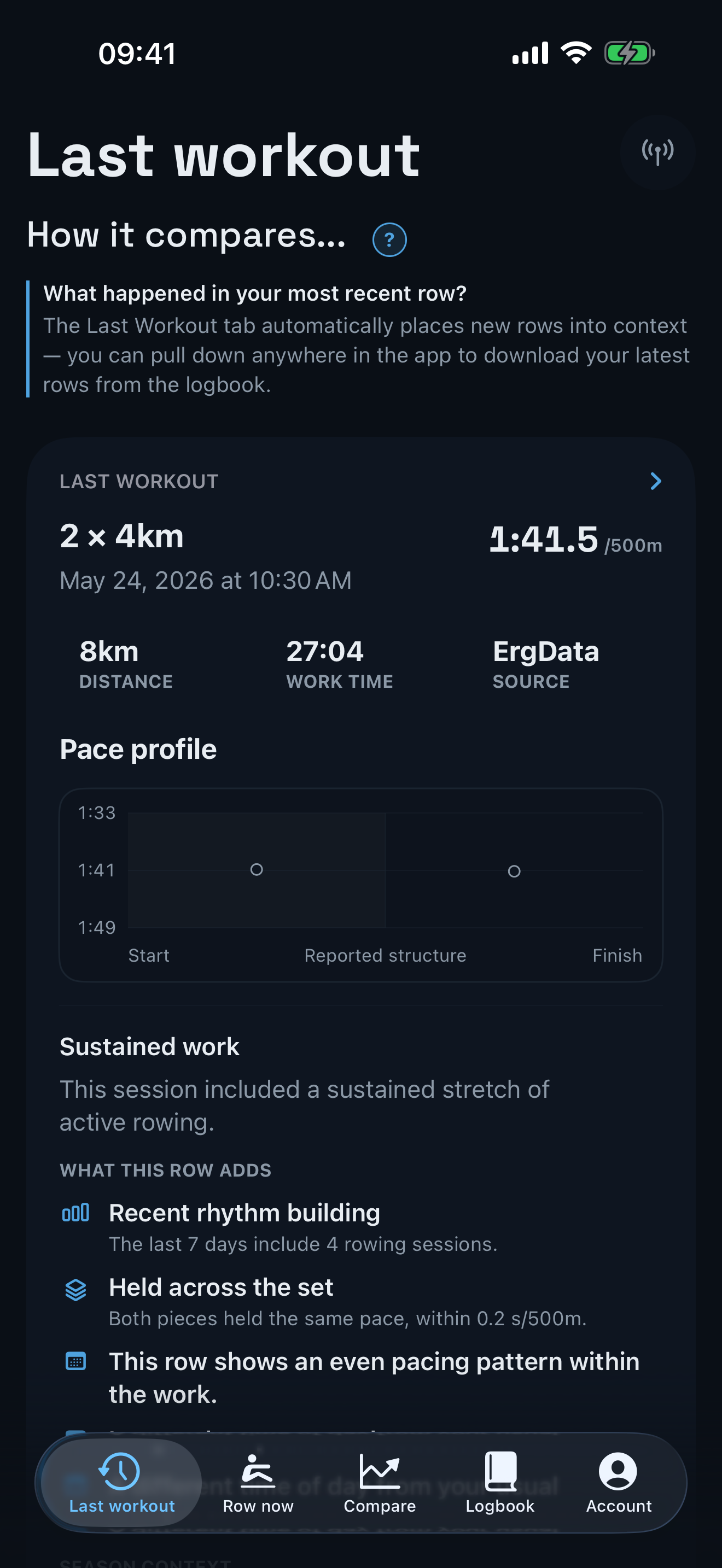
Your first captured row
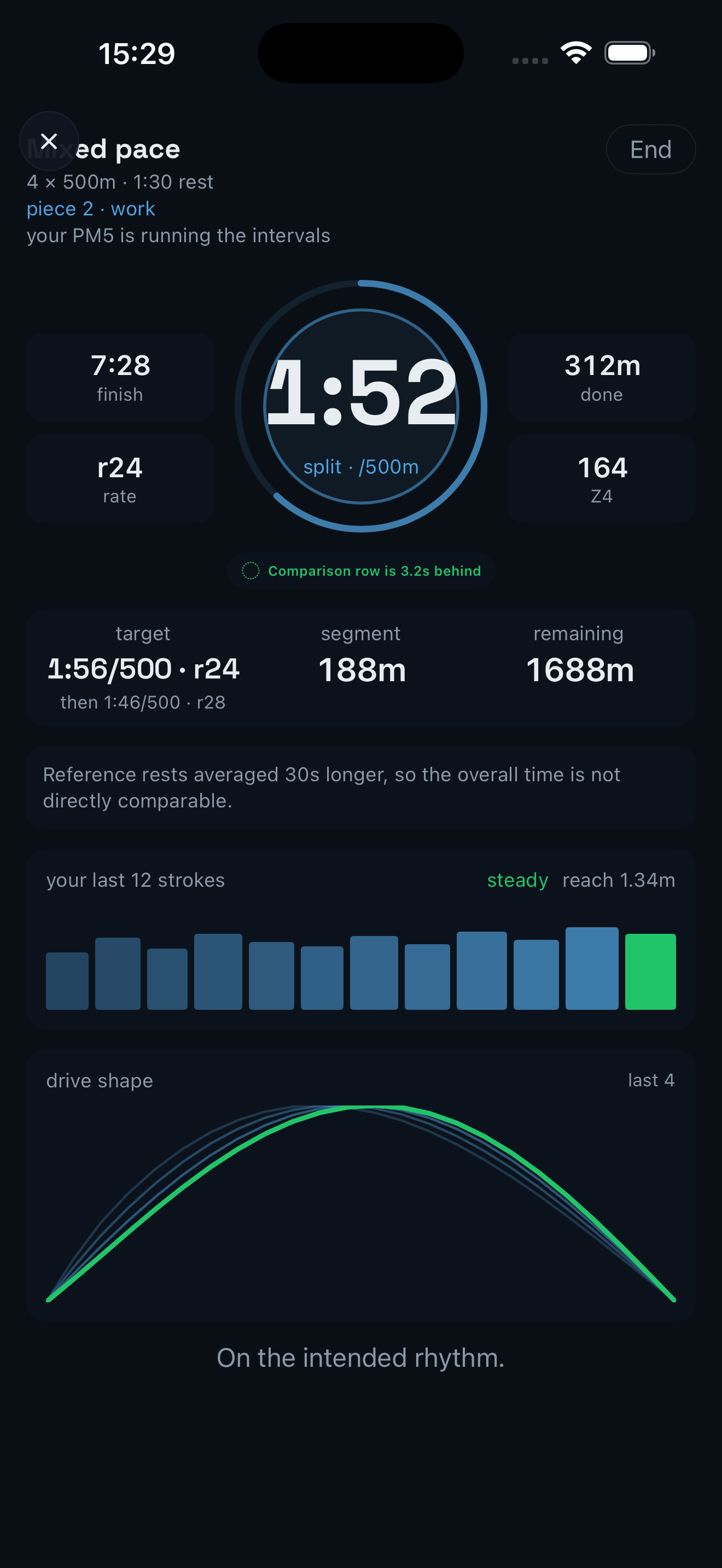
Open Row now, wake the PM5 and choose it from the connection screen. Pace, rate, interval position and drive shape appear as the monitor sends them. Finish the row on the monitor; aftererg keeps the local capture and opens the reflection.
Getting heart rate in
If both readings are present, the PM5 strap reading takes precedence.
We love using aftererg on an iPad, so we've built an experimental feature that broadcasts your heart rate from the Watch app, to a phone and to the PM5 for the iPad to detect. If you have a phone, watch and iPad, use the experimental second-device setup.
Set your max HR
Open Account and enter your maximum heart rate. aftererg uses that value for its zone bands; without it, the app falls back to an age estimate. The setting also travels to the companion Watch app.
Programme and send
Describe the session in the workout field, apply the result and check that the pieces match your intent. Send a compatible structure to the PM5, or run a richer structure with aftererg’s guidance. Saving rows to your library is part of aftererg Plus.
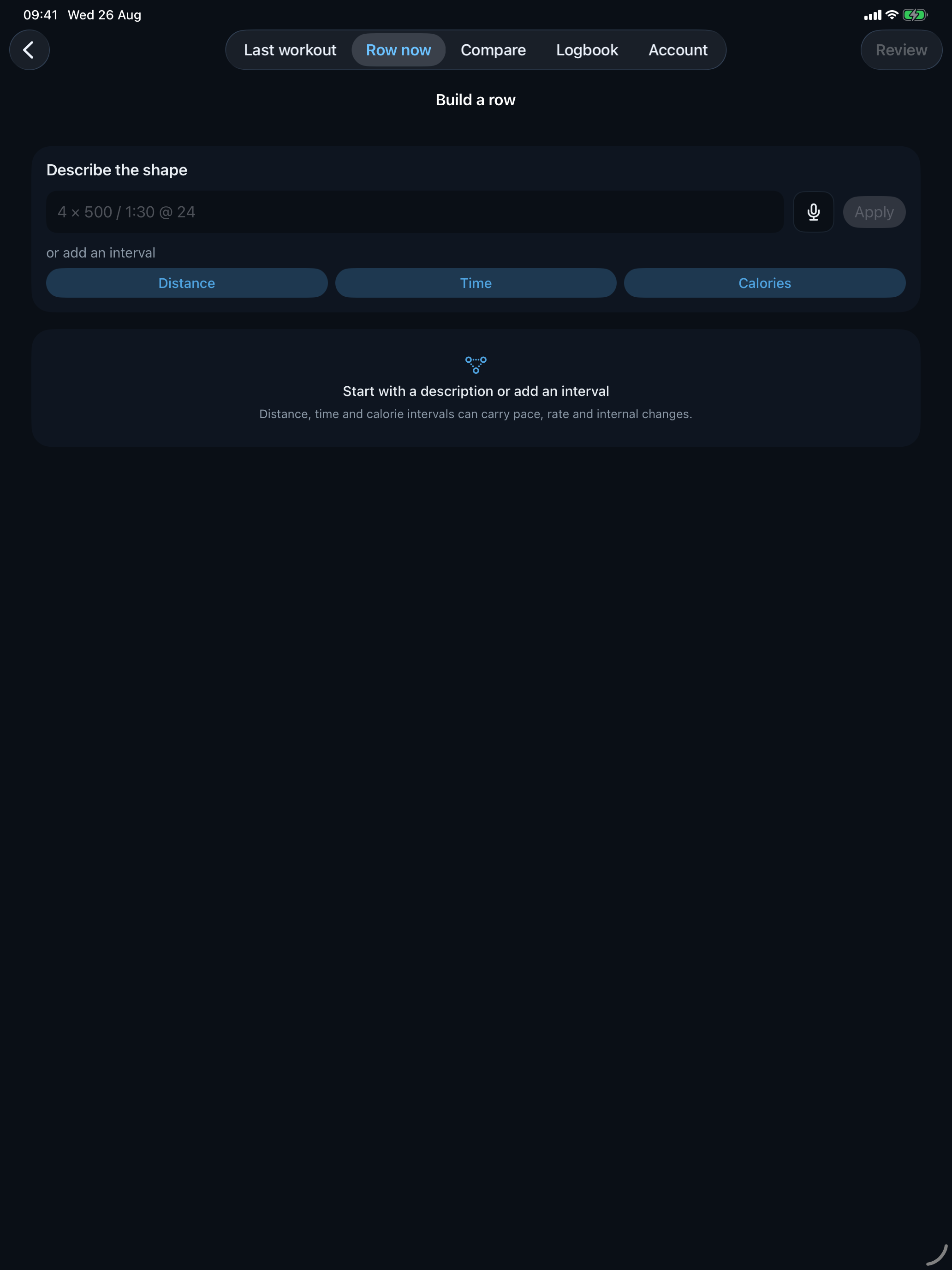
Build a useful library · aftererg Plus
Use short names you will recognise later, then gather related rows into a Plan when order matters. One saved row can appear in several Plans. Row Again turns a past row into today’s programme; aftererg groups comparison candidates from workout shape and identity, not from a clever title.
Back up or hand over a plan
From the saved-row library, export one row, a Plan with its rows, or the whole library. Save the file in Files or send it with AirDrop, Messages or Mail. A recipient can open every session, target and note for free; saving and following the Plan is part of aftererg Plus.
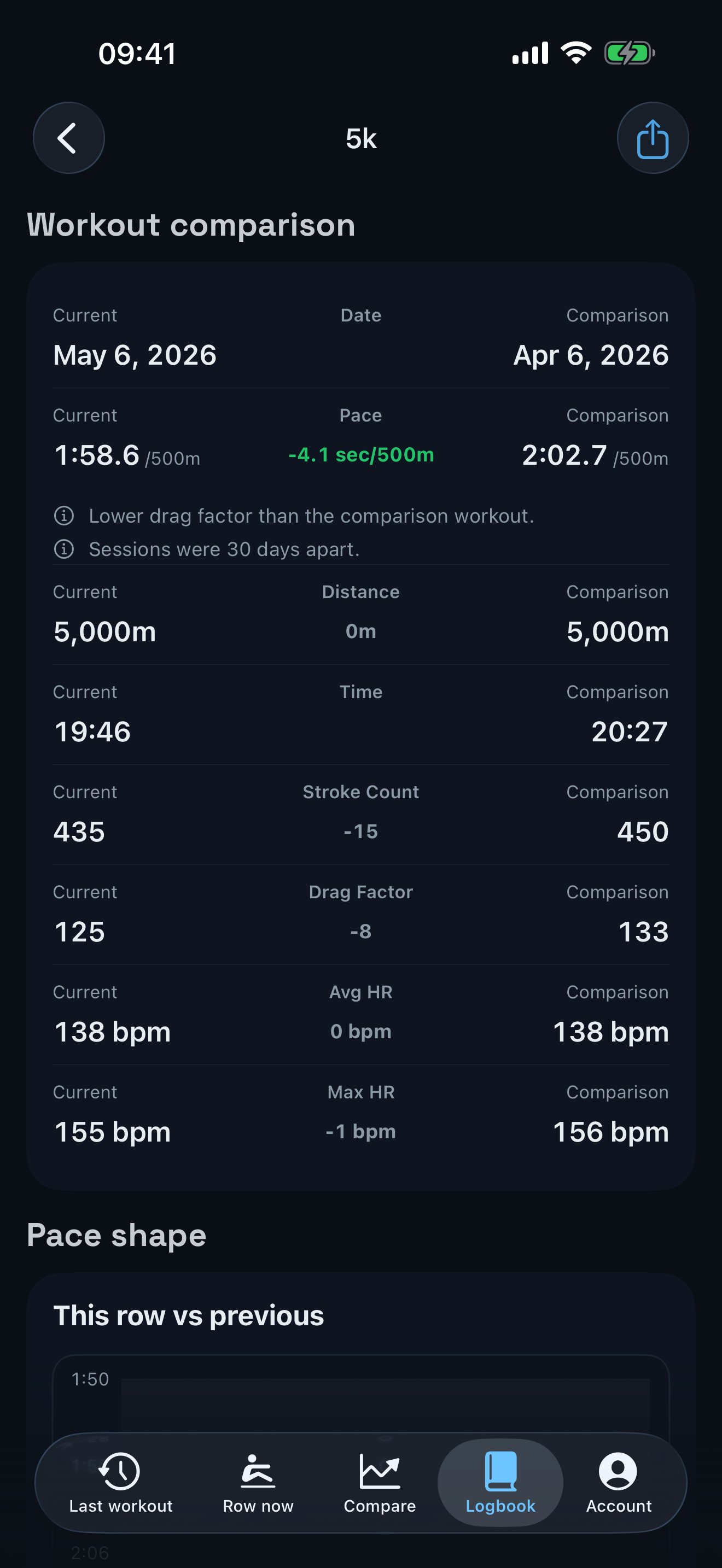
Read a comparison · aftererg Plus
We built aftererg to make it easy to compare performance across a rower's history. aftererg groups rows by distance, interval structure and workout identity so unlike efforts do not quietly become peers. You can compare rows side by side after a row. And any row can become a "ghost" when a comparable past row sits on the same represented clock. Read pace, rate and finishing shape together; sparse source data remains visibly sparse.
Rowing on iPad
The live and history layouts adapt to the larger screen. A strap paired with the PM5 reaches the iPad normally. Apple Watch communicates with its paired iPhone, so Watch heart rate on an iPad capture uses the experimental broadcast route described in Support.
Auto-save, either way
Auto-save is off by default. Turn it on in Account to send each confirmed aftererg capture to the Concept2 Logbook. Leave it off to keep capture local. Either choice leaves the rows already in your Logbook unchanged.
Keep exploring